

Introduction
SharePoint Online, is a core component of Microsoft 365, which provides organizations with a powerful, cloud-based platform for document management, collaboration, and information governance. At the heart of SharePoint are SharePoint Sites, which act as structured environments where teams and departments can store, organize, share, and manage digital content securely.
There are several types of SharePoint Sites; Team Sites, Communication Sites, and Hub Sites, each serving a specific purpose. Team Sites facilitate collaboration on projects and departmental work by integrating with Microsoft Teams and other M365 applications. Communication Sites enable company-wide announcements and content dissemination, while Hub Sites unify related sites with shared navigation and branding, providing a cohesive digital experience
Types of SharePoint Sites
There are basically two types of SharePoint site which includes; Team site and Communication site, others are, Hub site and Project or Department site
Team site (this is basically for collaborations, which could be refer to as “Many to Many” and communication site ( this is for as an announcement/information site, which could bre refer to as “Few to Many”
Team Sites
- Connected to a Microsoft 365 Group (and usually Teams).
- Used for collaboration within a group, project, or department.
- Provides document libraries, task lists, and integration with Outlook, Teams, and Planner.
Communication Sites
- Designed for broadcasting information to a wide audience.
- Typically used for company announcements, policies, and resources.
- Content is created by a small group but consumed by many
Hub Sites
- Bring together multiple related sites under a unified navigation and branding.
- Useful for connecting department or regional sites.
- Enable roll-up of news, events, and search across associated sites
Project or Department Sites (Custom)
- Created for specific purposes outside the default templates.
- Can be tailored with lists, workflows, and third-party integrations.
Importance to Organisations
- Centralized Collaboration: Teams can work together on files in real time.
- Knowledge Management: Policies, procedures, and best practices can be stored and easily accessed.
- Governance & Compliance: SharePoint provides version history, retention labels, and audit trails.
- Scalability: From a small team site to an enterprise-wide intranet.
Step-by-step on creating a SharePoint site from Microsoft Amin Center
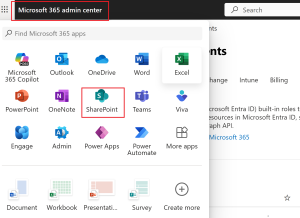
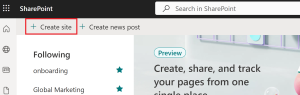
- Log in to Microsoft Admin center, click on the home page, select SharePoint, Click on Create site, then select the site type “Team site or Communication site” (for this content I will be creating Team site)

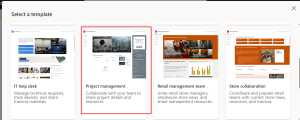
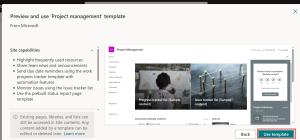
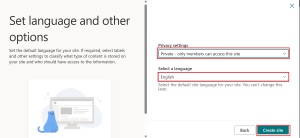
- Select a template that suites production “eg. Project Management”, Use template, input site name “Agetwty24 Grad 2025” ,descriptions, email and site address, click next, then privacy and language setting, then create site. Once the site is created look top right , you will automatically be the owner
Note; once the site is deployed the language setting won’t be changed

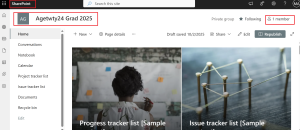
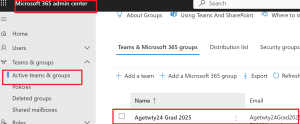
- Log in to Microsoft 365 Admin center, under Active teams and groups to confirm that the teams group “Agetwty24 Grad 2025” appears
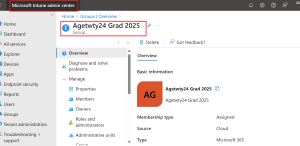
- Log in to Microsoft Intune admin center, under groups to confirm that the teams group “Agetwty24 Grad 2025” appears
- Log in to Microsoft Teams Admin center, under teams, then manage teams to confirm that the teams group “Agetwty24 Grad 2025” appears

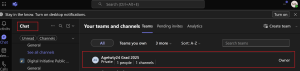
- Log in to Teams, under chats to confirm that the teams group “Agetwty24 Grad 2025” appears
Summary
SharePoint sites provide the foundation for collaboration, communication, and document management in Microsoft 365. Whether it’s a team site for projects, a communication site for announcements, or a hub site for centralized navigation, SharePoint enables organizations to securely share knowledge and improve productivity